
The archiving feature will help customers to:
Users are now empowered to manually archive forms and actions directly from the appropriate register, offering a convenient way to manage their data. Additionally, the newly introduced automatic archiving feature enables customers to effortlessly archive closed forms and completed actions. This automation is based on the specified duration since the form or action's last update, streamlining the process and enhancing overall efficiency.
This feature is available to all Forms customers, but will be most beneficial for:
When a form or action is archived:
1. It is removed from the normal view of the Forms register or Actions register in the web application and mobile applications.
2. It is still accessible by using the Archived button in the top right of the Forms register or Actions register screens, to toggle the screen into a mode where only Archived forms or actions are shown.

3. The same filters are available in the normal mode of the registers and the Archived mode.
4. You can unarchive an archived form or action by:
Users who have the Edit Project permission for the relevant Project can manually archive a form or action as follows…
1. In the Forms web application, go to the Forms register or Actions register for the relevant Project.
Note: forms and actions can only be archived using the web application – you cannot archive a form or action using one of the mobile applications.
2. Find the form or action that you want to archive.
Note: you cannot archive a draft form or action.
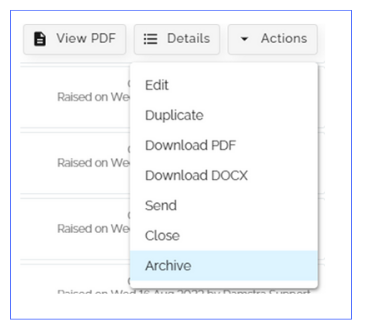
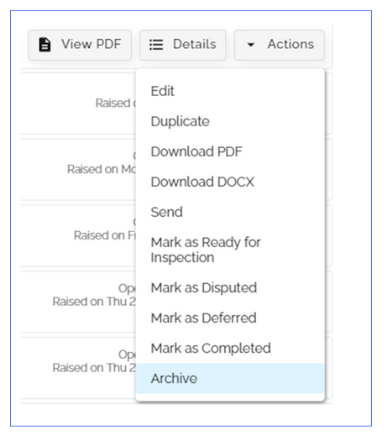
3. Select the Actions button for that form or action.
4. Select the Archive action. The form or action will be removed from the normal view of the relevant register on the web application and the mobile applications.
Users who have the Edit Project permission for the relevant Project can manually unarchive an archived form or action as follows…
1. In the Forms web application, go to the Forms register or Actions register for the relevant Project.
2. Select the Archived button in the top right of the screen to switch to the Archived mode of the register.
3. Find the form or action that you want to unarchive.
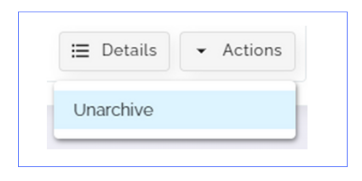
4. Select Actions > Unarchive for that form or action. The form or action will be restored to the normal view of the relevant register on the web application and the mobile applications.
Users who have the Manage Organisation user permission can configure automatic archiving as follows…
1. In the Forms web application, select Admin > Organisation to go to the Organisation Settings screen.
2. Select the Edit button.
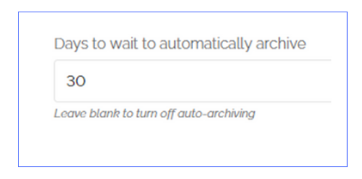
3. In the Days to wait to automatically archive field, type the number of days after which a closed form or completed action should be archived (leave this field blank or set to 0 if you don’t want to enable automatic archiving).
4. Select the Save button to apply your changes.
In addition to the scheduled running of the automatic archiving job, the Damstra Support user can manually trigger an on-demand run.